
modelPFRecordCreation
Extends from Modelica.Icons.Information (Icon for general information packages).
Information
Creating and Integrating the Power Flow Structure
After completing the instructions in Assembling a SMIB System, you should have a SMIB folder inside your working directory.
- Create a directory called
SMIB_Exampleat the same level where theSMIBfolder is located. - Create a directory called
modelsbelow your newSMIB_Examplefolder. - Move the
SMIBfolder below the previously addedmodelsfolder. - Copy the
pf2recfolder from Resources to theSMIB_Examplefolder. - Move the
create_records.pyandrun_pf.pyPython files one level up (i.e., to theSMIB_Examplefolder). The tree below shows how your folder structure should look like:C:\Users\...>tree /f /a SMIB_Example Folder PATH listing Volume serial number is ... C:\USERS\...\SMIB_Example | create_records.py | run_pf.py +---models | \---SMIB | | ... | \---pf2rec | create_pf_records.py | generate_component_list.py | gridcal2rec.py | __init__.py | ... - Reload your model or run Dymola, depending on what you did at the end of the previous section. Create a package inside the root package
SMIBand name itUtilities. - Add a new function inside
UtilitiescalledsaveTotalSMIBModel. Remember that the procedure for creating functions is the same as for other kinds of classes such asPackage,ModelorRecord. - Go to the Modelica text of the function and type the following code:
function saveTotalSMIBModel "Save the SMIB package as a total model"
  extends Modelica.Icons.Function;
  output Boolean ok "= true if succesful";
protected
  String targetDir = "C:/Users/Miguel/SMIB_Example/models/SMIB";
algorithm
  ok := saveTotalModel(targetDir + "/" + "SMIBTotal.mo", "SMIB", true);
end saveTotalSMIBModel;
🔨 Update the targetDir variable value with the appropriate path to reach the
SMIBfolder.📌 This function has no inputs and only one boolean output. The modelica standard function
saveTotalModelis called inside the algorithm section with predefined arguments. You can check the information view ofsaveTotalModelto get to know the proper use of each of its parameters. To do that, make sure theDymolaCommandslibrary is loaded within the Package Browser. Then navigate as shown in the picture below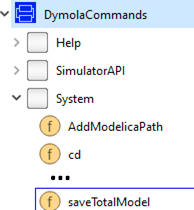
- Right-click the
saveTotalSMIBModelfunction from the Package Browser. Select the " Call Function..." option and then click theOKbutton. As a result, you should be able to see a new file calledSMIBTotal.moin the same folder where your model files are being stored. - Go to the system terminal, change the current directory to the location where the
create_recordsPython script is placed and execute it as indicated below.python create_records.py - Go back to Dymola and refresh (
 ) the SMIB package.
📌 The Python script
create_recordsshould have created a new package inside your model that looks like this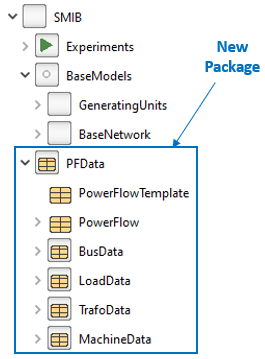
- Double-click the
SMIBPartialmodel to open its diagram view. From the newPFDatapackage, drag and drop onePowerFlowelement on your canvas. For convenience, rename it aspf.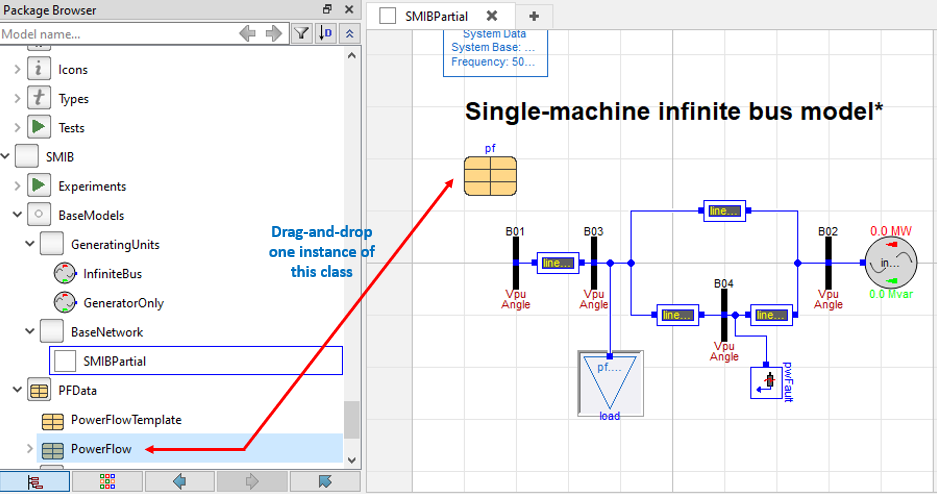
- Link the power flow variables to the different components as indicated below. Yes, unfortunately you must type them!
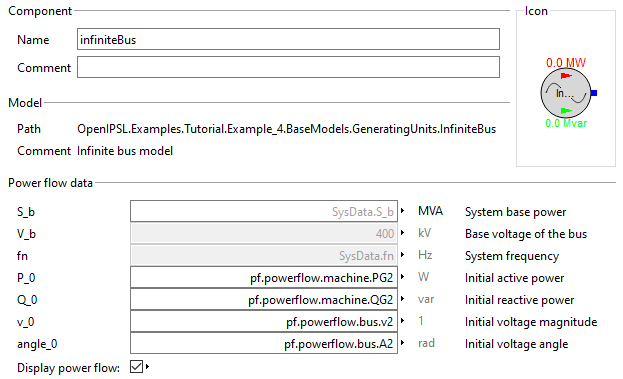
Component V_0 A_0 P_0 Q_0 B01 (bus) pf.powerflow.bus.v1 pf.powerflow.bus.A1 N/A N/A B02 (bus) pf.powerflow.bus.v2 pf.powerflow.bus.A2 N/A N/A B03 (bus) pf.powerflow.bus.v3 pf.powerflow.bus.A3 N/A N/A B04 (bus) pf.powerflow.bus.v4 pf.powerflow.bus.A4 N/A N/A load (load) pf.powerflow.bus.v3 pf.powerflow.bus.A3 pf.powerflow.load.PL1 pf.powerflow.load.QL1 InfiniteBus (gen) pf.powerflow.bus.v2 pf.powerflow.bus.A2 pf.powerflow.machine.PG2 pf.powerflow.machine.QG2 If you check your model now, you should see an error because we have not defined the power flow values. We have just pointed to the container which will have it. Next, we generate the power flow results using
GridCal. - Now open the diagram layer of your SMIB model inside the
Experimentspackage. Link the power flow variables togenunitas specified in the following table:Component V_0 A_0 P_0 Q_0 genunit (gen) pf.powerflow.bus.v1 pf.powerflow.bus.A1 pf.powerflow.machine.PG1 pf.powerflow.machine.QG1